CouponF5 is an independent publisher. We may earn a commission when you purchase through our links, at no extra cost to you. Merchant terms apply.
In this guide
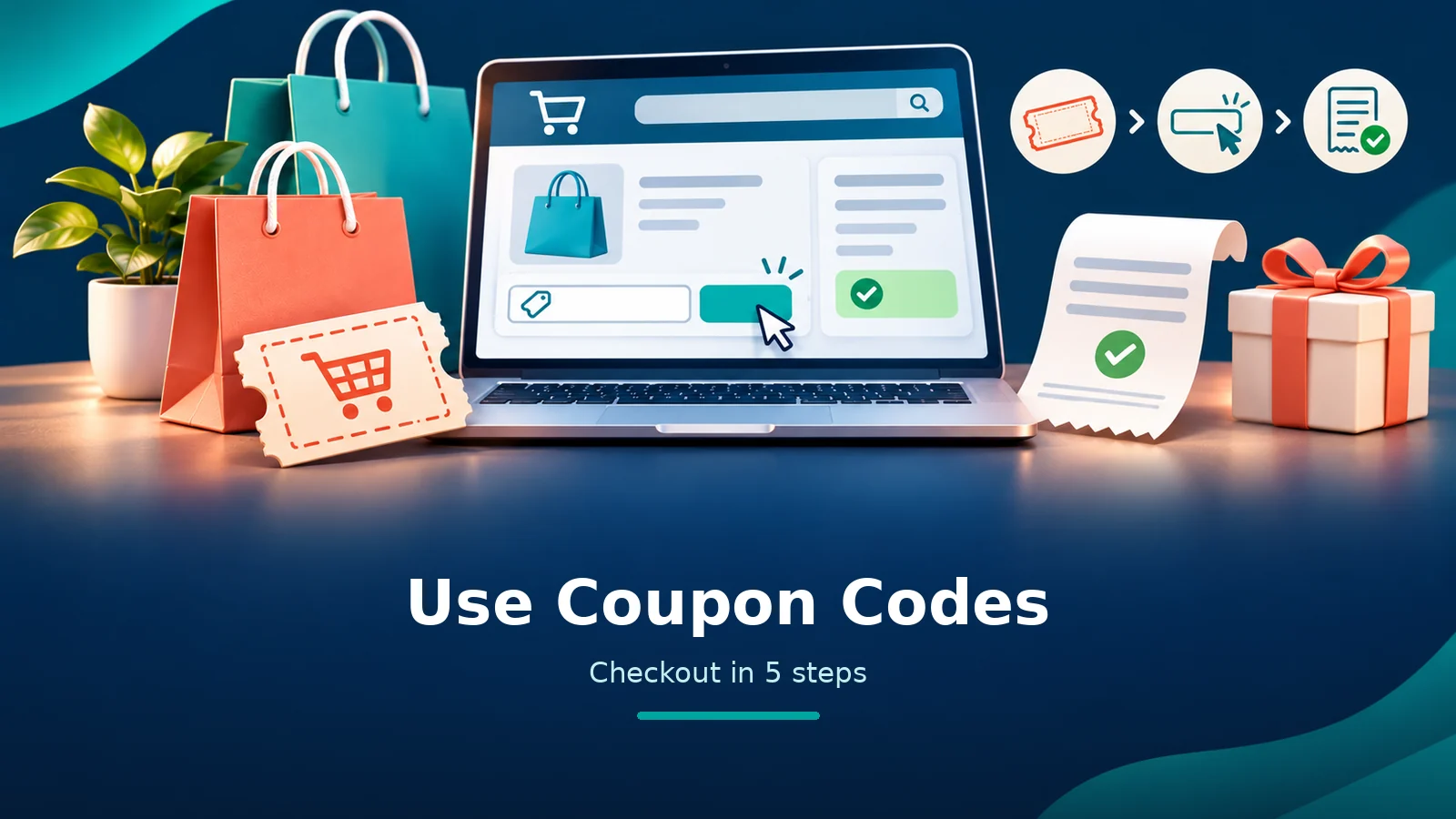
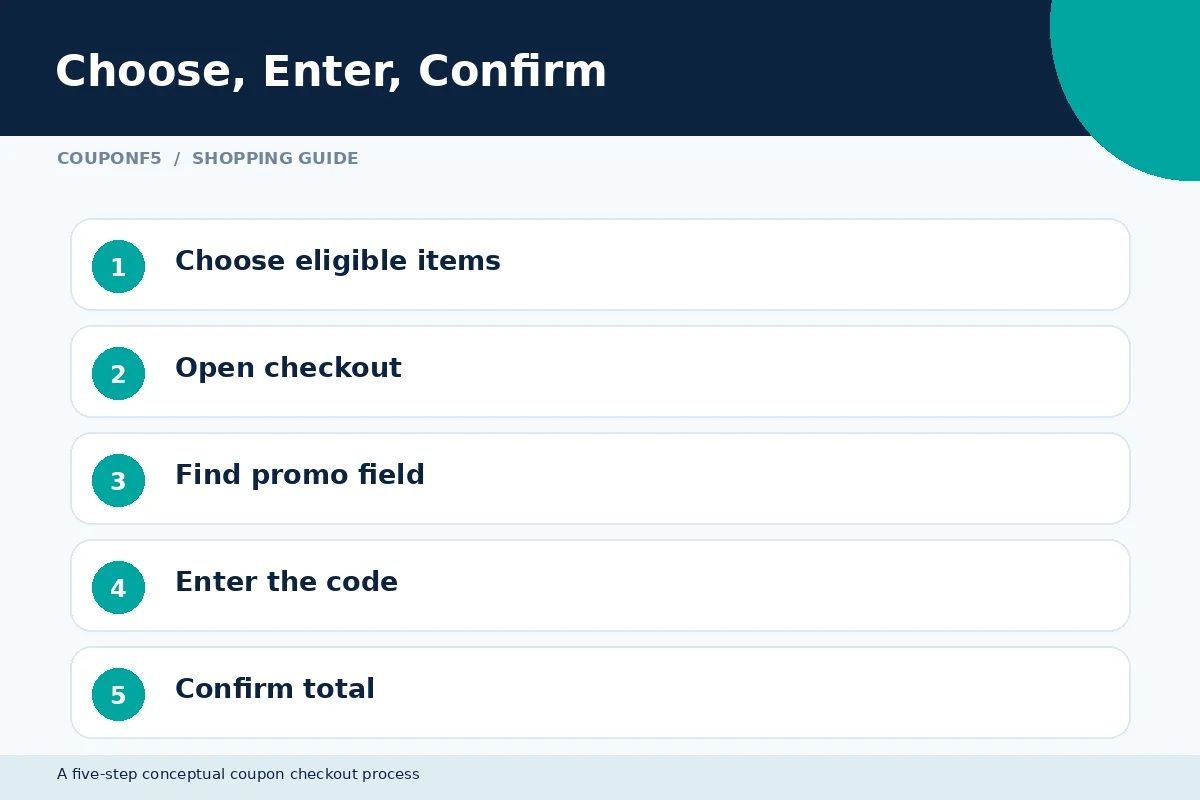
To use a coupon code when shopping online, add eligible items to your cart, open the retailer’s checkout, enter the code in its coupon or promo field, select Apply, and confirm the discount appears before paying. The steps are straightforward, but where the box appears and which items qualify depend on the store.
This guide walks through the full checkout process, including shopping on a phone, comparing a code with an existing promotion, and recognizing when a coupon did not actually reduce your order. The sample numbers below are examples, not working discount offers.
How to Use a Coupon Code: Five Steps
Step 1: Choose your products and check the offer terms
Start with the products you intended to purchase. Before entering a code, read the promotion’s conditions: its dates, minimum eligible spend, qualifying items or categories, account requirements, and any usage limits. A code advertised as “sitewide” may still have exceptions in the merchant’s terms.
Do not add unnecessary products to reach a minimum unless the extra items are things you truly want. A bigger discount does not help if it makes the purchase more expensive than planned.
Step 2: Go to the cart or checkout page
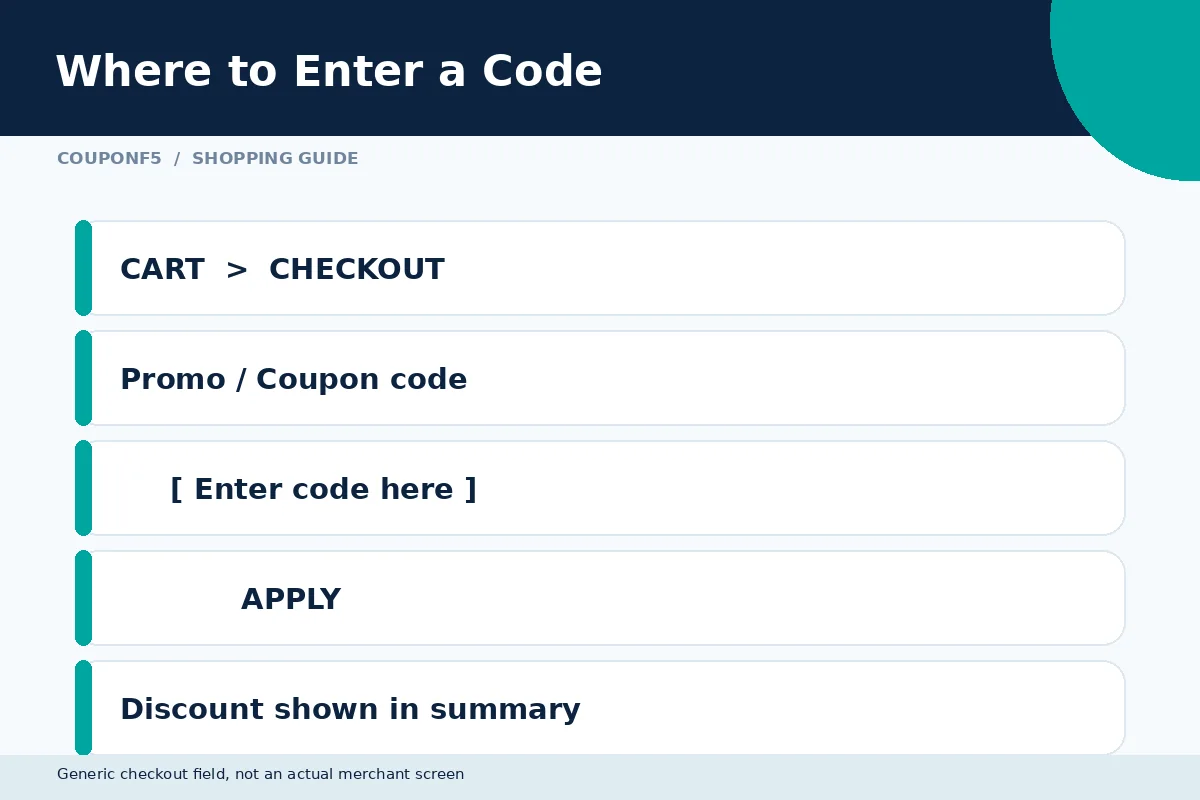
When you are ready, review the item names, quantities, sizes, and shipping destination. Some websites display the promo field on the cart page; others show it later under an expandable order summary in checkout. On a mobile browser, you may need to tap a section labeled “Order summary,” “Have a promo code?” or “Add discount.”
Pay attention to the real website address before typing personal or payment information. A coupon should be redeemed at the retailer’s legitimate site rather than a lookalike page reached from an unfamiliar message.
Step 3: Enter the coupon code accurately
Copy and paste the characters from a trusted offer source, or type them carefully. Remove accidental leading or trailing spaces and double-check similar-looking characters. Codes are often combinations of letters and numbers; case handling and accepted characters can differ by store.
If the offer says it applies through a link rather than a code, follow the merchant’s official instructions. A discount link may populate the checkout automatically; you may not need to enter anything.
Step 4: Select Apply and read the response
Click or tap the retailer’s Apply, Redeem, or equivalent button. Look for a confirmation and a corresponding line in the order summary. A successful coupon can reduce an eligible product subtotal or modify a shipping charge. A message stating that the code was entered does not, on its own, confirm that you saved money.
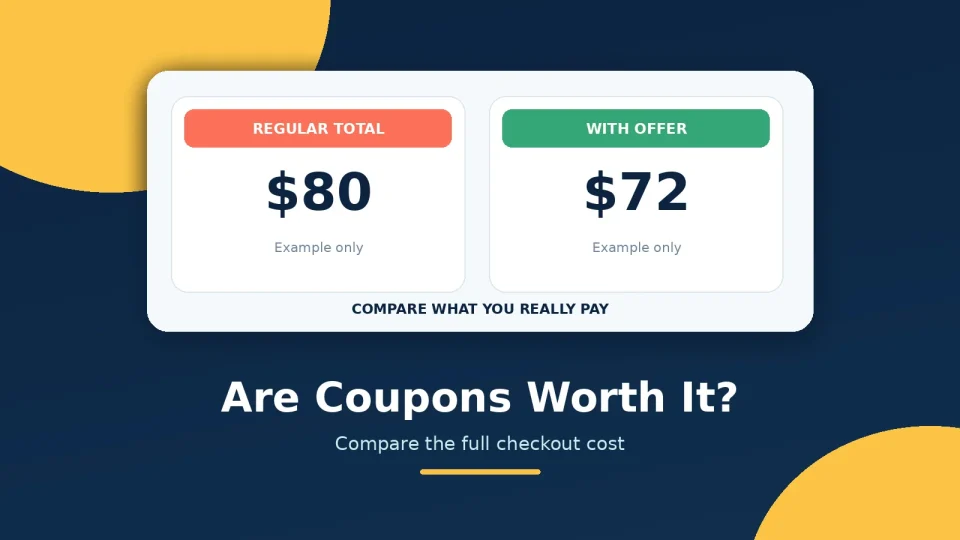
For example, if an illustrative $80 eligible subtotal receives a 10% discount, the reduction is $8 and the adjusted subtotal is $72 before any separate shipping and tax. The example is purely mathematical. Your actual checkout may calculate a different discount because of exclusions or limits.
Step 5: Confirm the final total before paying
Review the revised item subtotal, shipping and handling, tax, and final amount due. Check whether a previous promotion disappeared when the new code was applied. Keep the better eligible price rather than assuming two offers can be combined.
If the code did not apply as expected, investigate before placing the order. Do not assume the store will retroactively refund the difference.
Where Do You Enter a Coupon Code?
Most retailers use a checkout field called “Coupon code,” “Promo code,” “Discount code,” or “Gift card or discount code.” Common locations include the bottom of the cart, an accordion under order summary, or a separate promotion section before payment. The exact location is a website-design choice, not a standardized rule.
On a smartphone, open the order summary if the promo box is hidden. If you have a discount link or an offer saved to your store account, the reduction may already appear and no manual field may be necessary. Shopify’s official discount-method documentation distinguishes typed discount codes from automatic discounts that appear when checkout conditions are met.
Why a Coupon May Fail at Checkout
A failed code is not always mistyped. Retailers can restrict who can use a promotion and what the promotion covers. Review these common causes:
- Expired or not yet active: the promotion falls outside its authorized period.
- Minimum spend not met: the value of eligible merchandise is below the required threshold.
- Excluded products: certain categories, variants, brands, or clearance items do not qualify.
- Wrong customer account: the offer may require a specific email, first-time status, or membership.
- Redemption cap: a code can have overall or per-customer use limits.
- Incompatible promotions: another code or automatic discount cannot be combined with it.
Can You Use More Than One Coupon Code?
Sometimes, but there is no storewide rule across the internet. Some merchants allow certain classes of promotions to combine, while others limit stacking or automatically select a permitted offer. Shopify, for example, supports merchant-configured combinations of product, order, and shipping discounts, subject to restrictions. That does not mean every Shopify store—or every other retailer—permits all combinations.
To compare two offers, note the final total with the first promotion, remove it if needed, and try the second. If the site permits a combination, verify the resulting discount line items. Avoid repeating codes from unverified lists or assuming an offer works because an aggregator says it does.
How to Use Coupon Codes on Mobile
The same logic applies in a mobile browser or retailer app: choose items, find the offer field, enter the code, apply it, and inspect the updated order summary. The most common difference is the interface. Look for a collapsed order summary, scroll near the payment details, or check the cart before checkout.
Some mobile wallets or express checkout options skip part of the retailer’s usual shopping-cart flow. If the discount is missing, return to the retailer’s normal checkout to see whether the offer can be added before using an accelerated payment option.
How to Know Your Coupon Actually Worked
There are three practical signals: the store accepted the code, the order shows the expected eligible discount or delivery adjustment, and the total is lower than it would be without the offer. Read all three, because the first is not sufficient on its own.
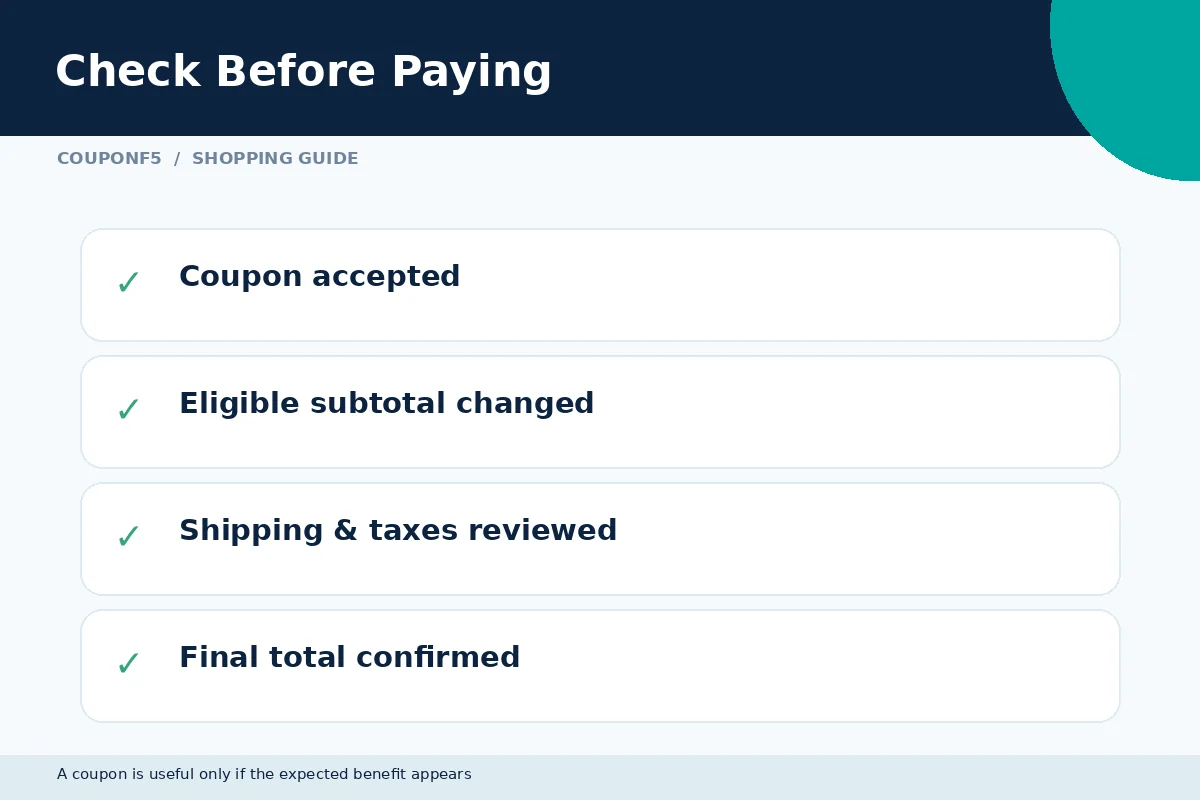
Keep in mind that any tax amount and shipping charges may be calculated separately according to the order and jurisdiction. A promo-code banner is not a receipt. The amount due is the important number to compare.
Common Coupon Mistakes to Avoid
- Applying an old code without checking the dates. Coupons are often temporary and can stop working even if a third-party listing remains visible.
- Assuming sale items qualify. Many promotions exclude selected merchandise or entire categories.
- Adding products purely to reach a threshold. Spending $25 extra to obtain a $10 discount is not a saving on your original purchase.
- Ignoring shipping after applying the code. A small price reduction may be outweighed by delivery charges.
- Trusting an unfamiliar coupon link. Go to the merchant’s real website rather than entering login or payment details on a suspicious lookalike page.
Frequently Asked Questions
Can I use a coupon code without an account?
Often yes, but some offers require customers to sign in or meet specific membership or new-customer conditions. Check the terms.
Why does the code say “applied” but my total is unchanged?
The code may apply only to an item not in your cart, to shipping, or to products already receiving a stronger promotion. Inspect discount lines and eligible items, then ask the retailer if the result is unclear.
Can a discount code be added after I pay?
Do not count on it. Post-purchase adjustments depend on the retailer’s policy, and many checkouts do not accept promo codes after an order is placed. Confirm the reduction beforehand.
Is a promo code different from a coupon code?
These terms commonly mean the same thing in online shopping. The merchant’s promotion rules, rather than the label, determine the benefit.
What if my online store has no coupon box?
Check the cart and expandable order summary. The store may use automatic discounts, discount links, or may simply not accept codes on that checkout.
Bottom Line
The reliable way to use an online coupon is to apply it at the real merchant’s checkout and inspect the final price. Choose eligible items, enter the code where directed, and verify the discount before paying. A checkout confirmation backed by an actual lower total is stronger evidence than a coupon listing alone.